![logo_white_text.svg]](https://help.tinkle.co/hubfs/logo_white_text.svg)
Managing and analyzing your call data is essential for maintaining an efficient communication workflow. This guide walks you through using the Tinkle Telecom analytics dashboard to monitor live agent statuses, filter historical calls, and generate AI-driven transcripts and summaries.
Reviewing Call Logs
- Navigate to the Tinkle Stats Dashboard.
- Use the Live updates toggle to enable or disable real-time updates.
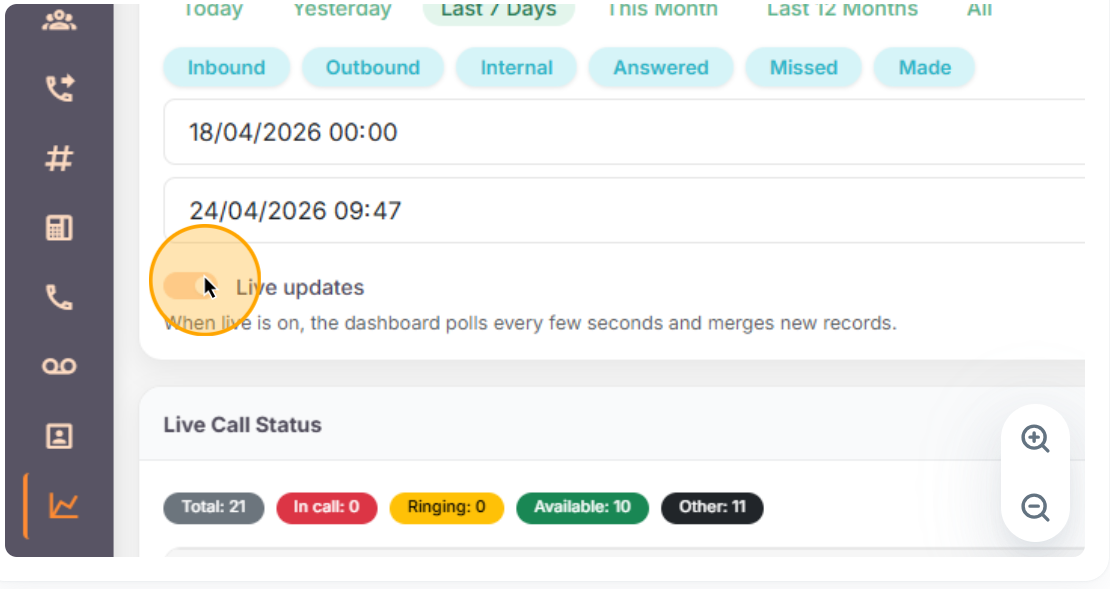
Filtering and Sorting Call Logs
- Use the Rows dropdown to adjust the number of records per page.
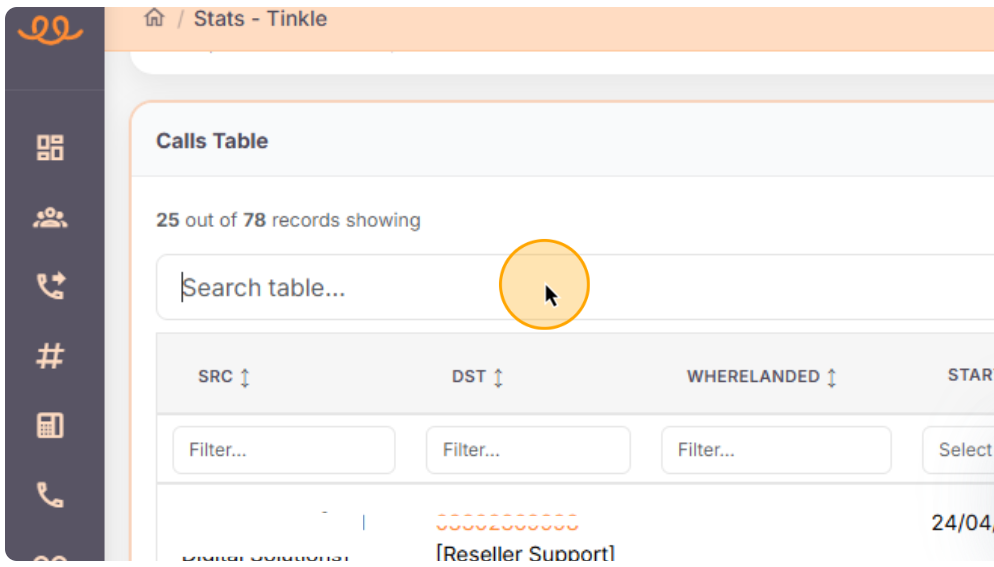
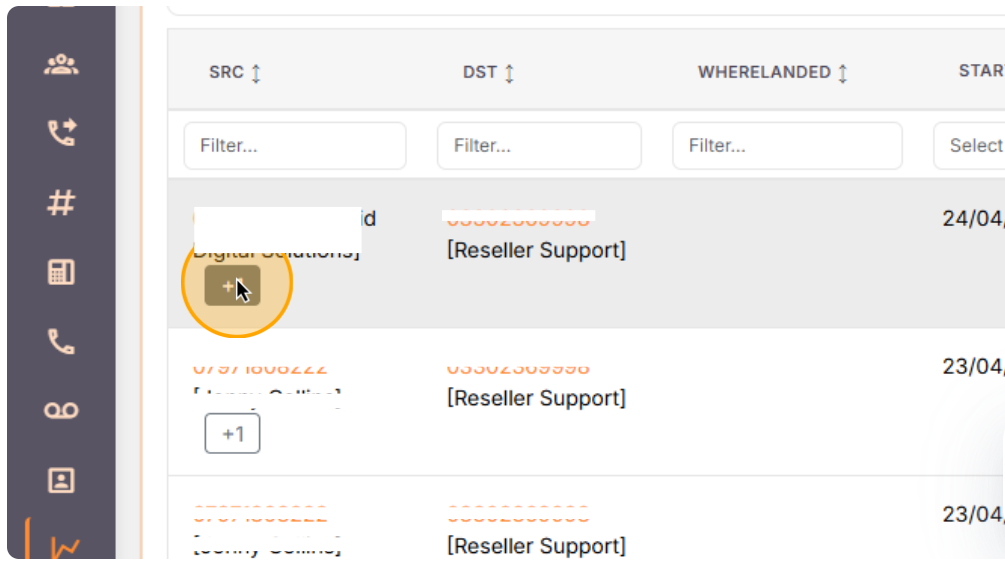
- Click column headers (e.g., Start Date, Source) to sort data.
- Use the REC column dropdown to filter recordings and transcripts.
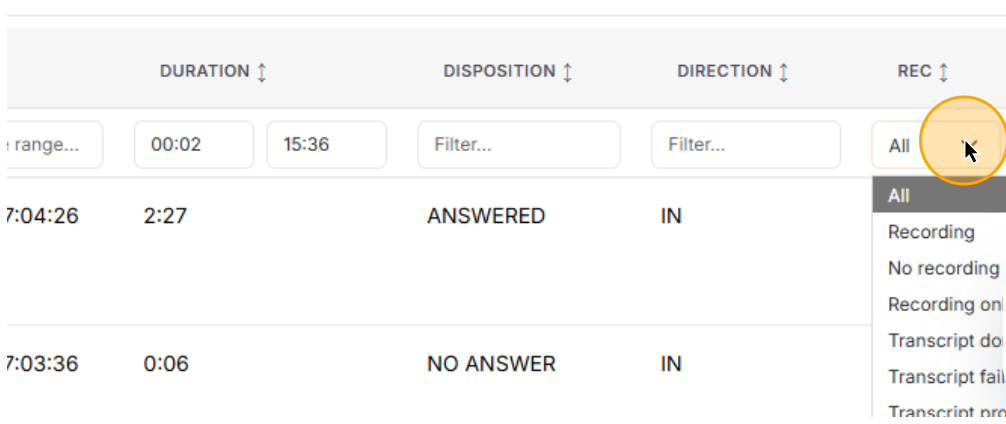
- Filter by Recording, No recording, or transcript status.
Playing Recordings and Generating Transcripts
- Click Play next to a call to open the recording.
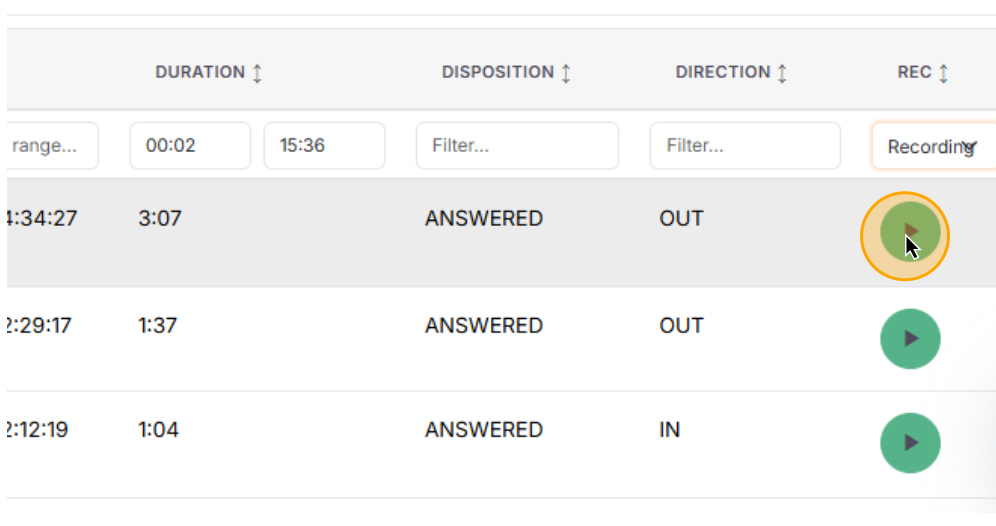
- Click Generate transcript & summary if not already available.
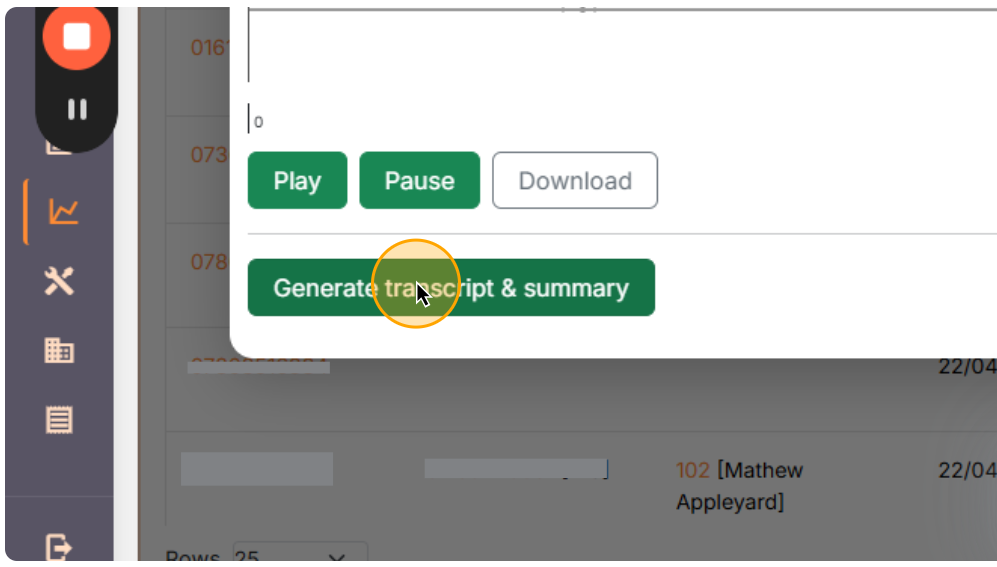
- Wait for processing (queue status will be shown).
- Click Summary to view the AI-generated recap.
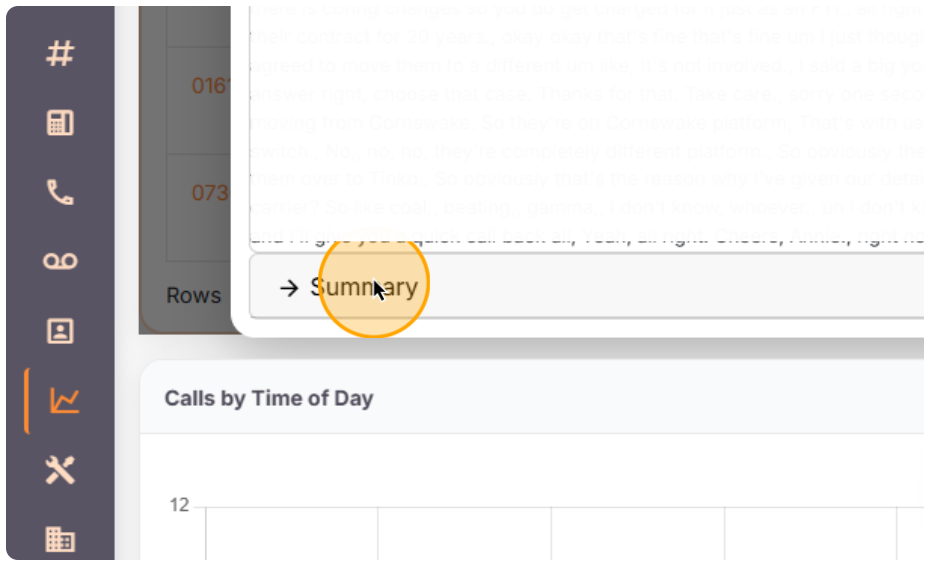
- Close the modal to return to the Calls Table.