![logo_white_text.svg]](https://help.tinkle.co/hubfs/logo_white_text.svg)
Customizing your analytics dashboard allows you to monitor exactly what matters to your team in real time. Follow these steps to add and configure live queue widgets so you can easily track summaries, agent availability, and waiting customers.
Access the Dashboard
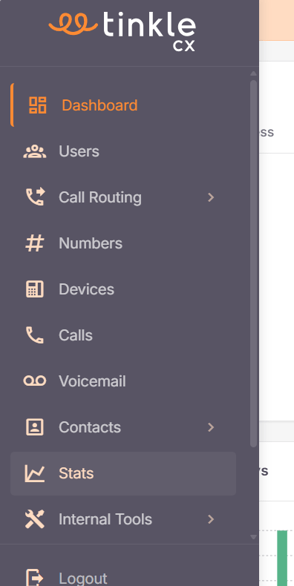
- Navigate to your Stats dashboard.
Add a Live Queue Summary
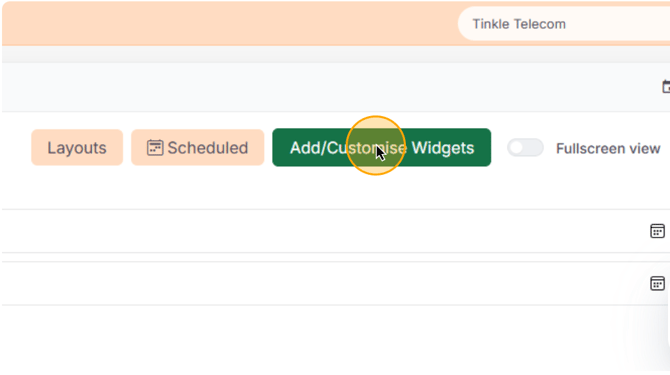
- Click Add / Customise Widgets to open the widget selection panel.
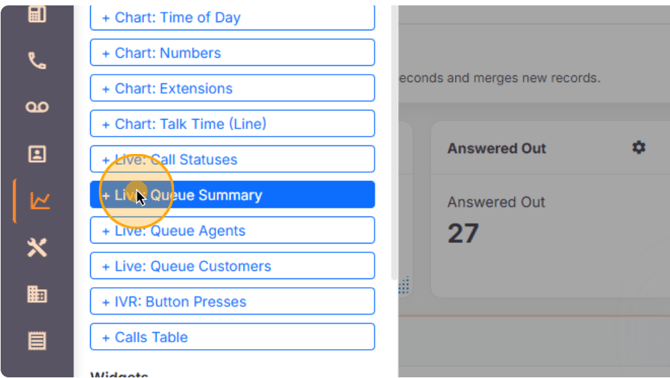
- Under the Live section, click Queue Summary to add the widget to your dashboard.
- Hover over the new widget and click the settings icon.
- Select the queue you want to track from the Queue dropdown.
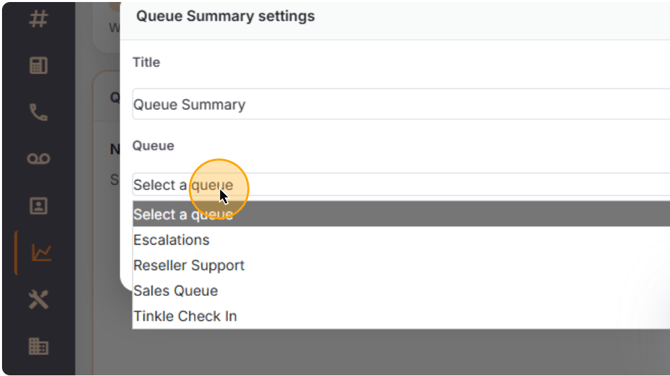
- Configure the refresh interval if needed.
- Close the settings modal by clicking the × icon.
- View the queue summary details on your dashboard.
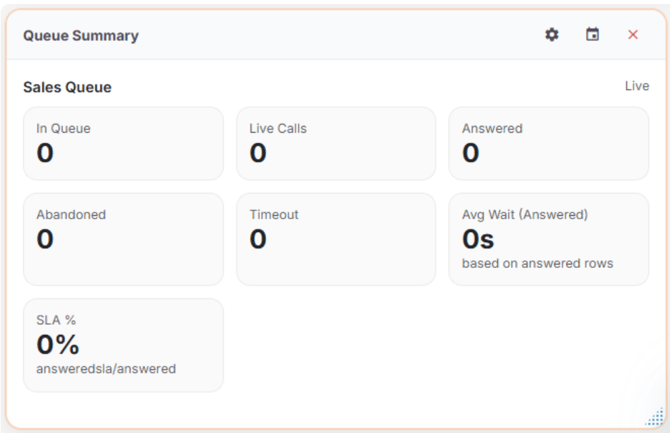
Add Live Queue Agents
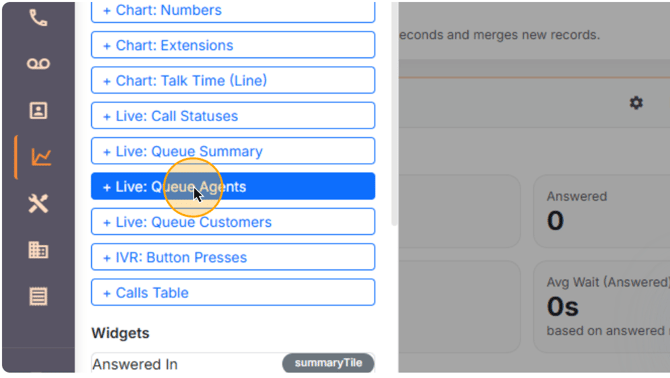
- Click Add / Customise Widgets.
- Select Live: Queue Agents from the sidebar.
- Open widget settings using the cog icon and select the appropriate queue.
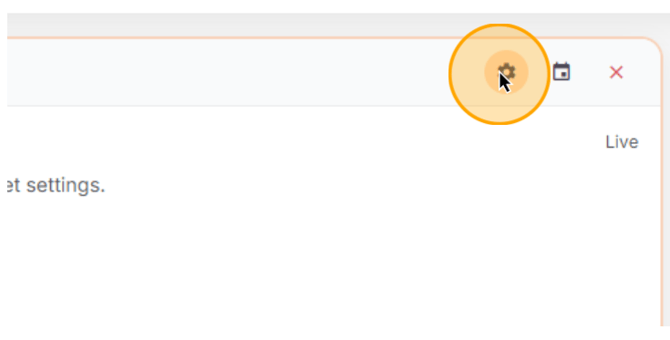
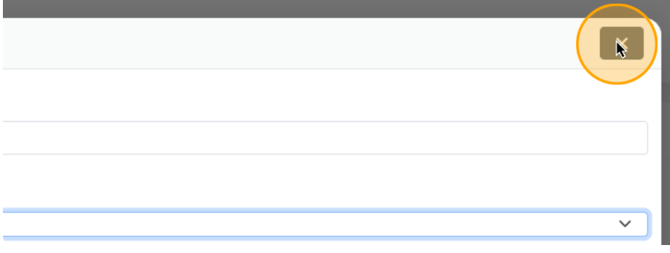
- Close the settings modal.
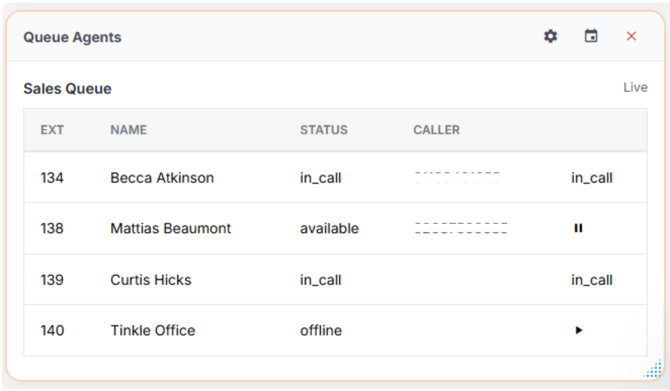
- View agent statuses and manage pause/activate functionality directly from the widget.
View Customers Within Your Live Queue
- Click Add / Customise Widgets.
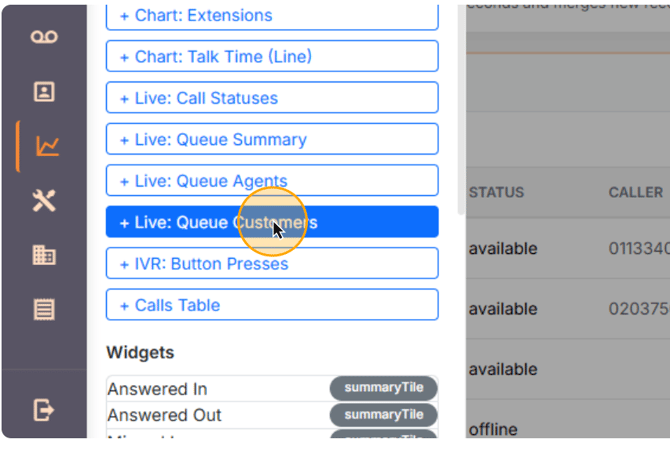
- Select Live: Queue Customers widget.
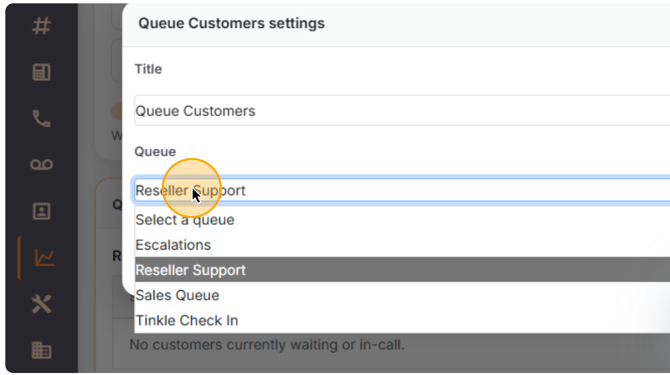
- Choose the queue you want to monitor (e.g., Reseller Support).
- Close the settings window.
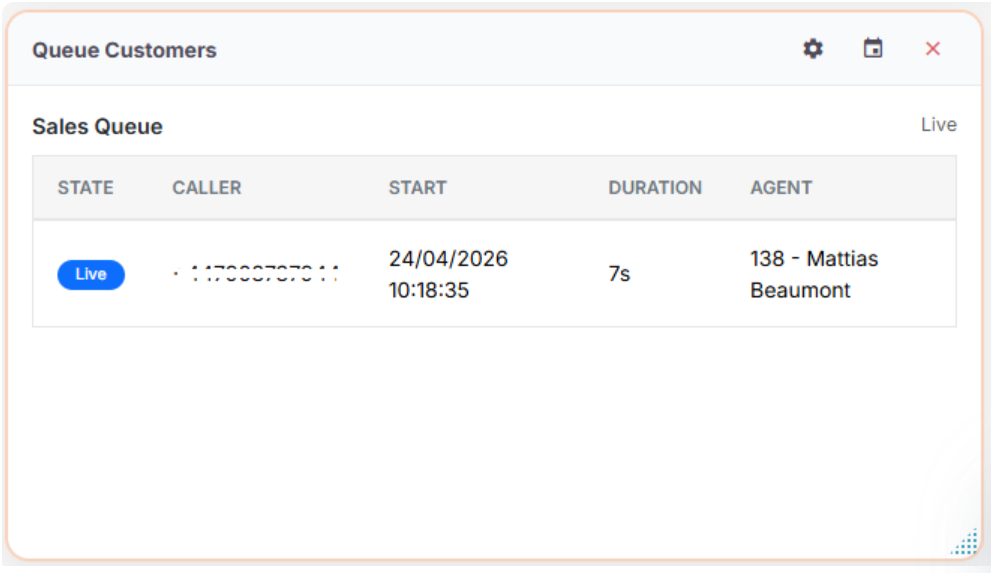
- View active callers waiting in the queue.
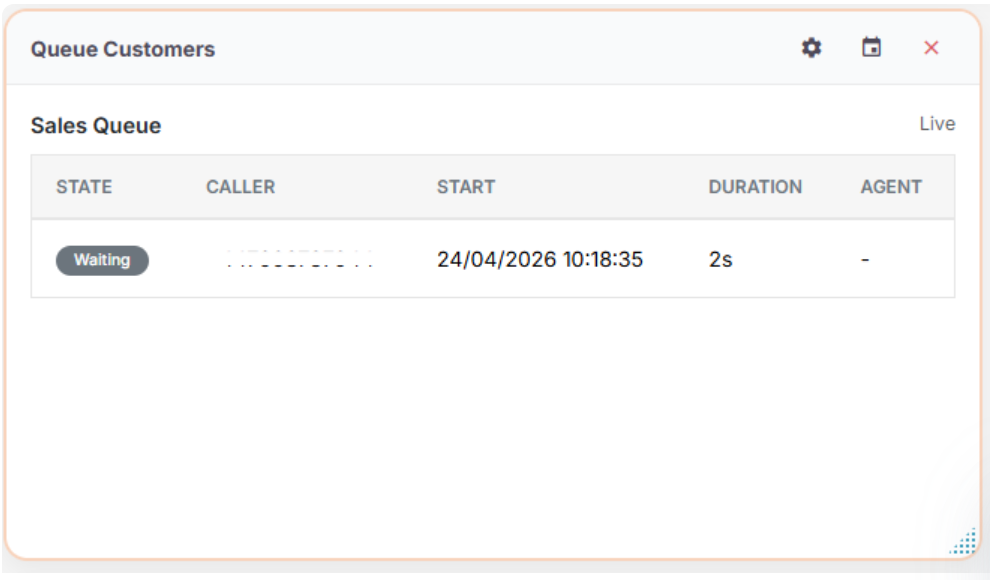
- See updates when calls are answered.
Save Your Layout
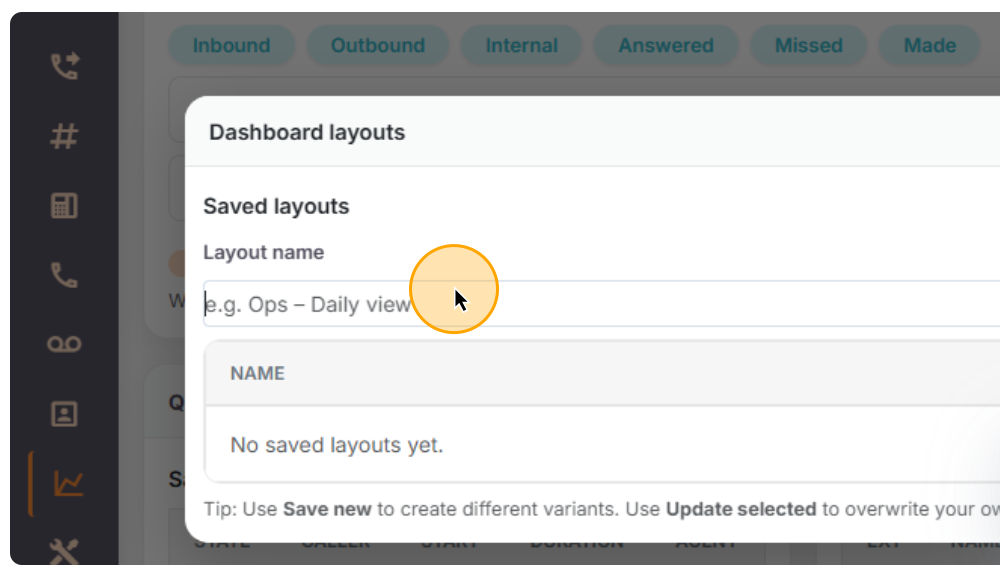
- Click Layouts near the top right of the dashboard.
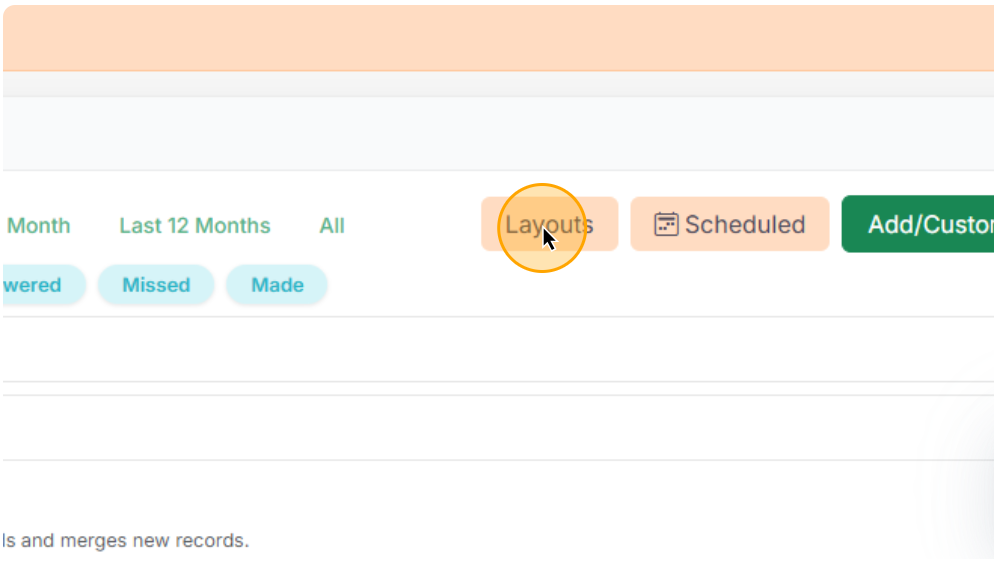
- Enter a name for your custom layout.
- Save your layout to preserve your widget configuration.