![logo_white_text.svg]](https://help.tinkle.co/hubfs/logo_white_text.svg)
Adding and customizing widgets on your Tinkle dashboard allows you to monitor the specific call metrics that matter most to your team. Here's how to create a custom widget, apply specialized filters, and export your data for external reporting.
Add a New Widget
- Navigate to your Tinkle Stats Dashboard.
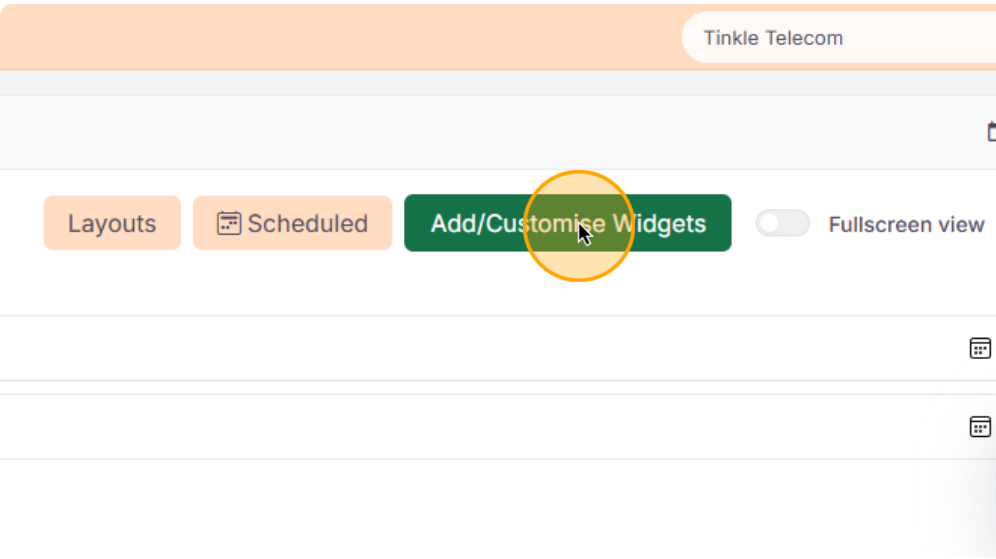
- Click Add / Customise Widgets in the top-right toolbar.
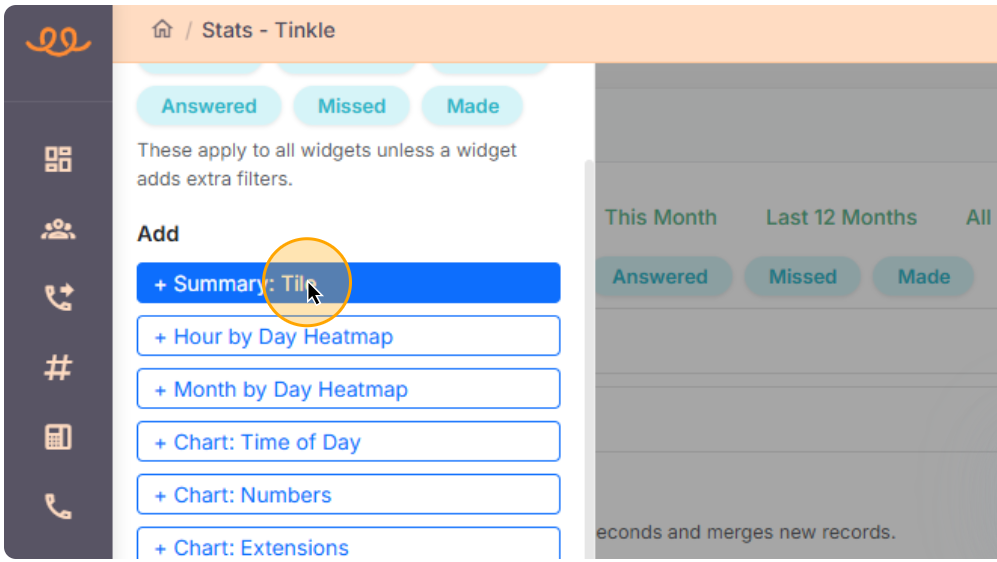
- Select the format of the widget you want to add from the sidebar, such as a Tile.
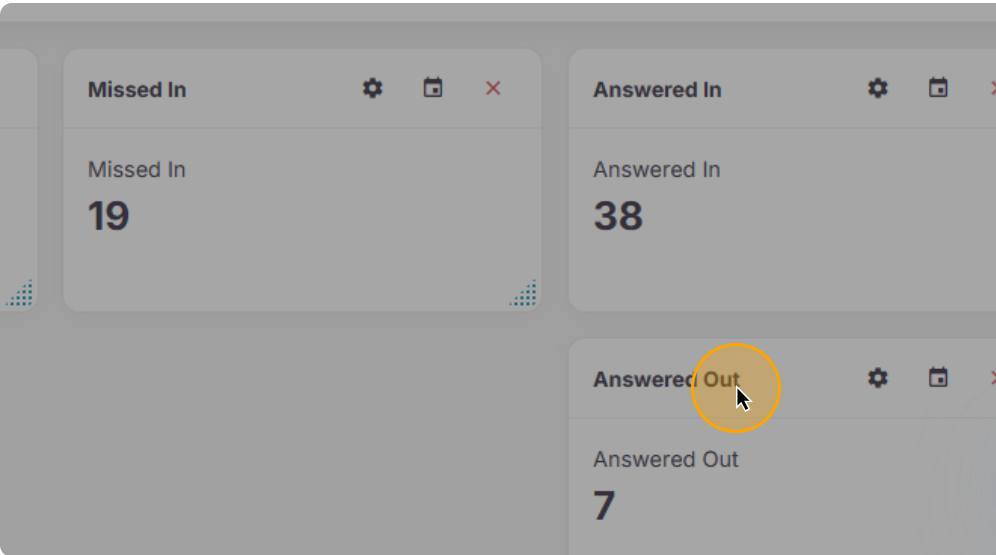
- Choose a base metric to add the widget to your dashboard, like Answered Out.
Customize Widget Settings
- Hover over your new widget and click the Gear icon to open its settings.
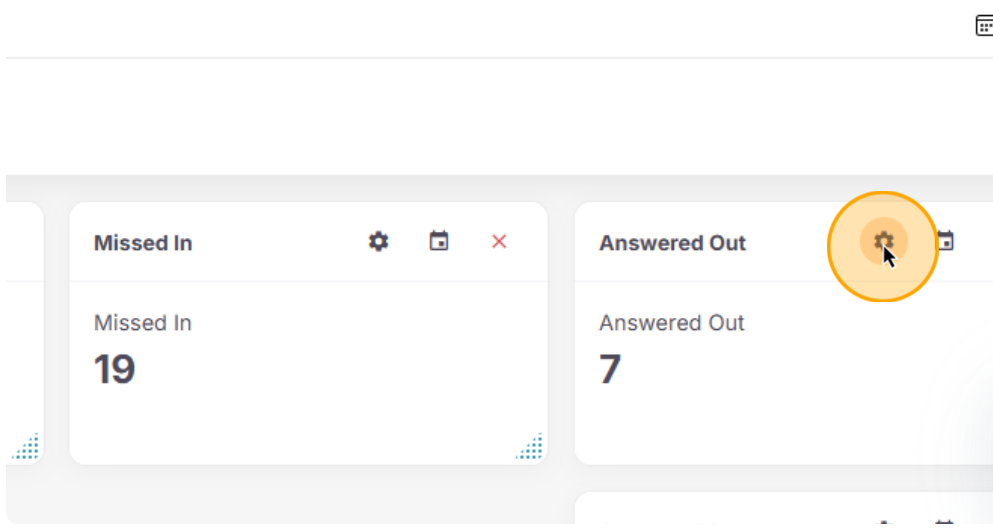
- Enter a custom title for the widget to make it easily identifiable, such as Missed Calls This Year.
- Use the Metric dropdown menu to alter the data point being measured.
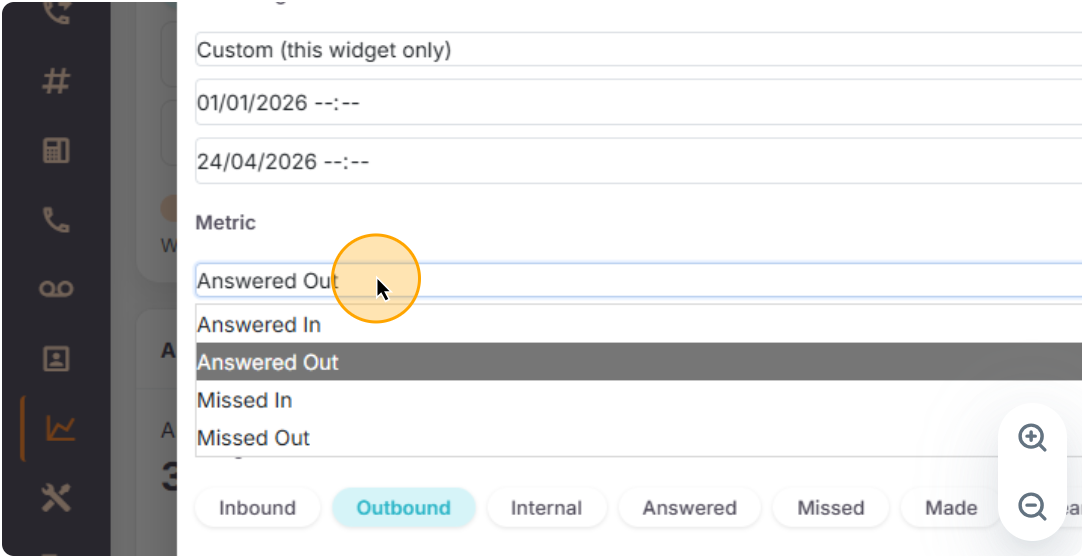
- Click the date range dropdown to specify the timeframe (global or custom).
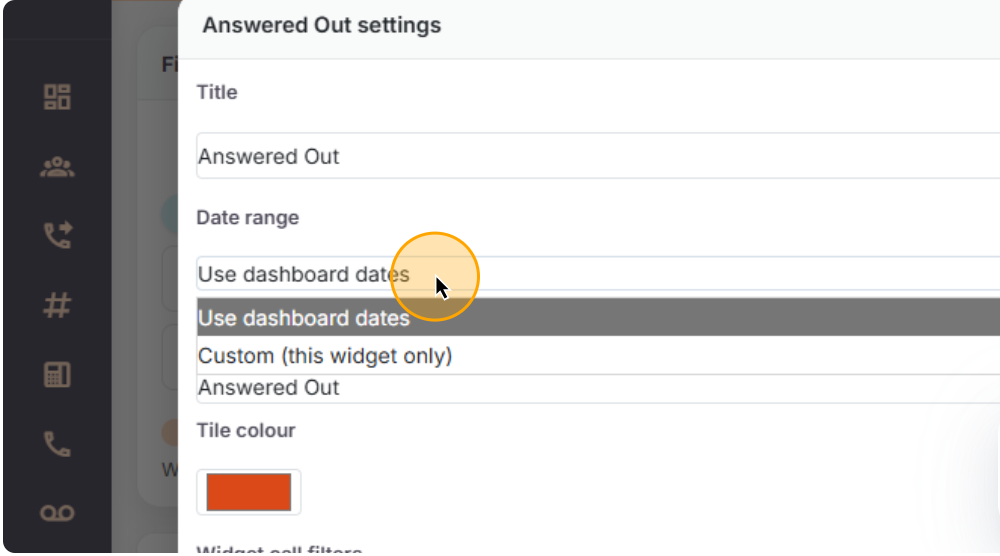
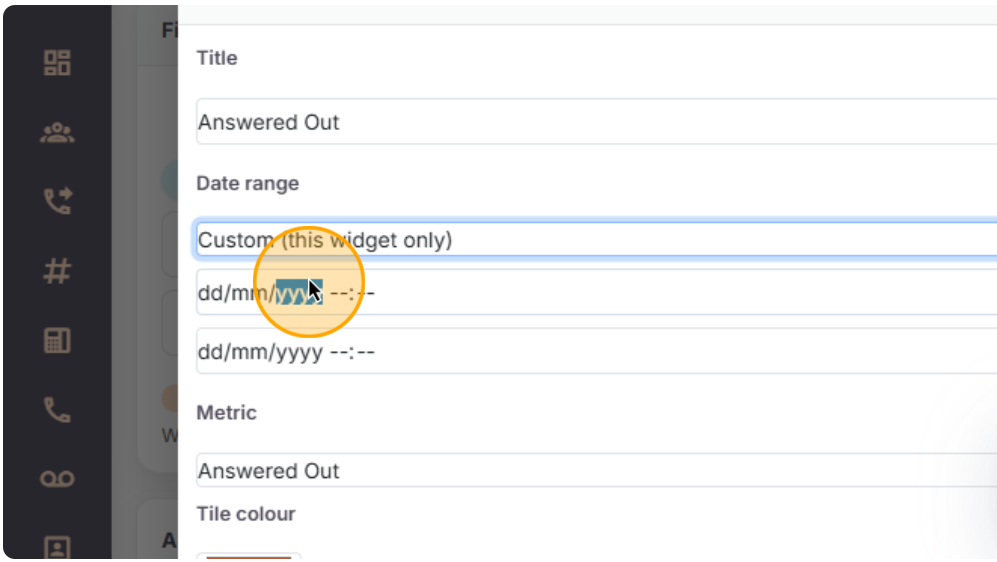
- If using a custom range, enter your specific start and end dates.
- Use the color picker to customize the visual theme of the widget tile.
Apply Call Filters and Extensions
- In the Widget call filters section, toggle on call types (e.g., Inbound or Outbound).
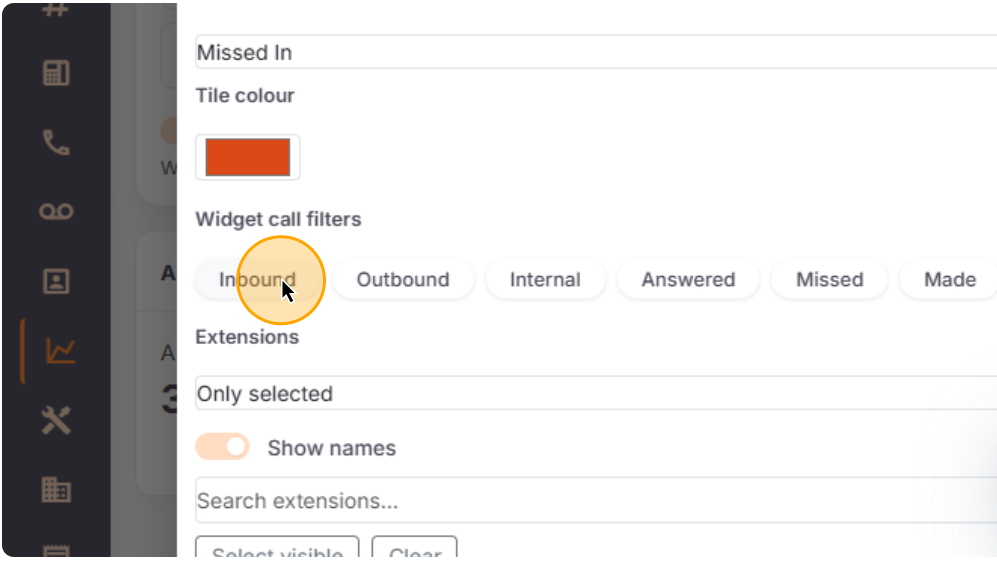
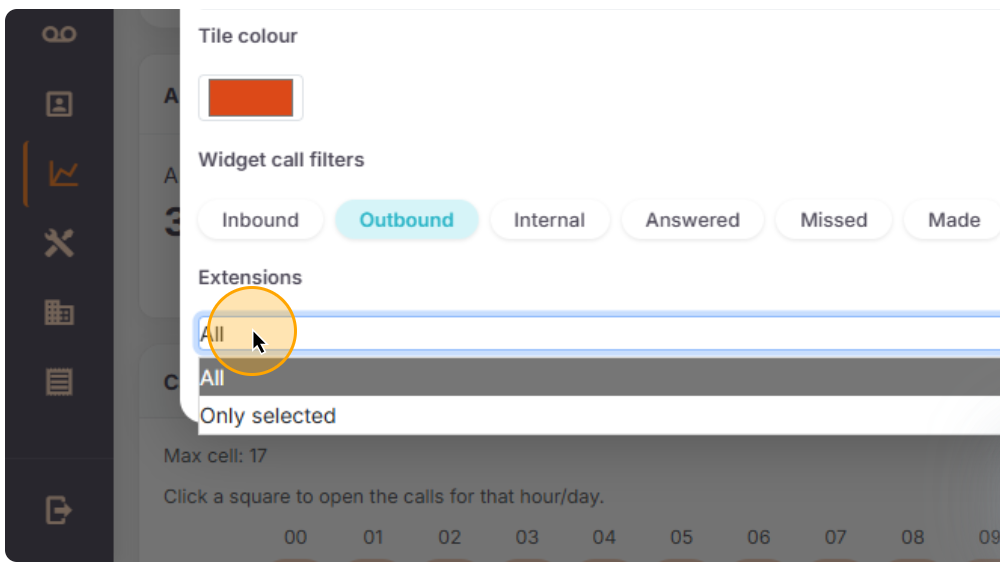
- Click the Extensions dropdown menu.
- Select All or Only selected to limit data to specific team members or lines.
- Choose the relevant extensions from the list.
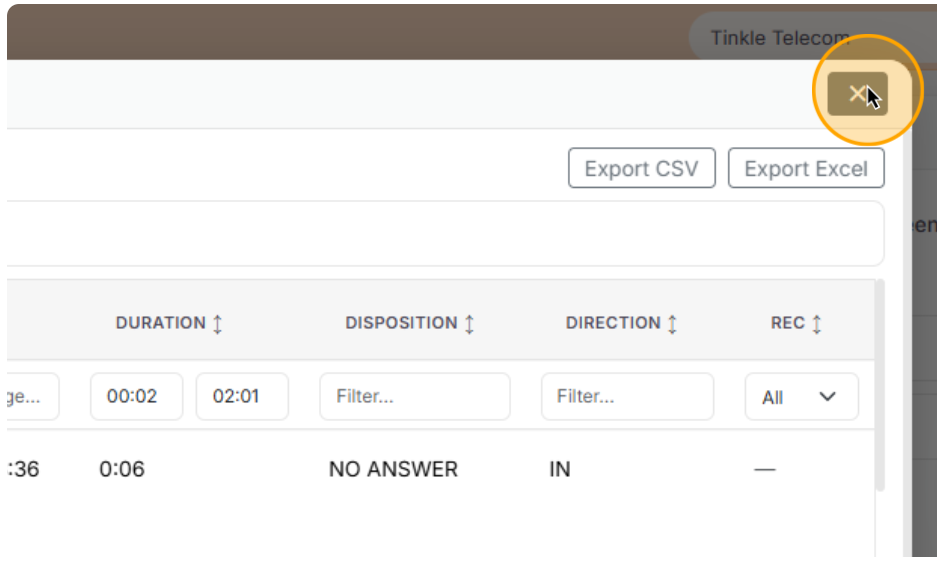
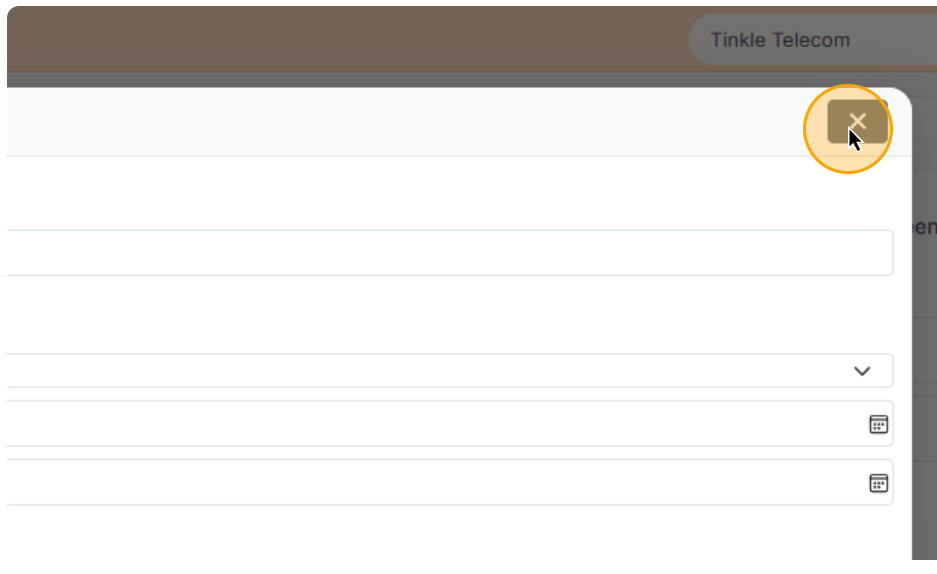
- Click the × at the top right of the modal to save and close.
View Widget Data Details and Export
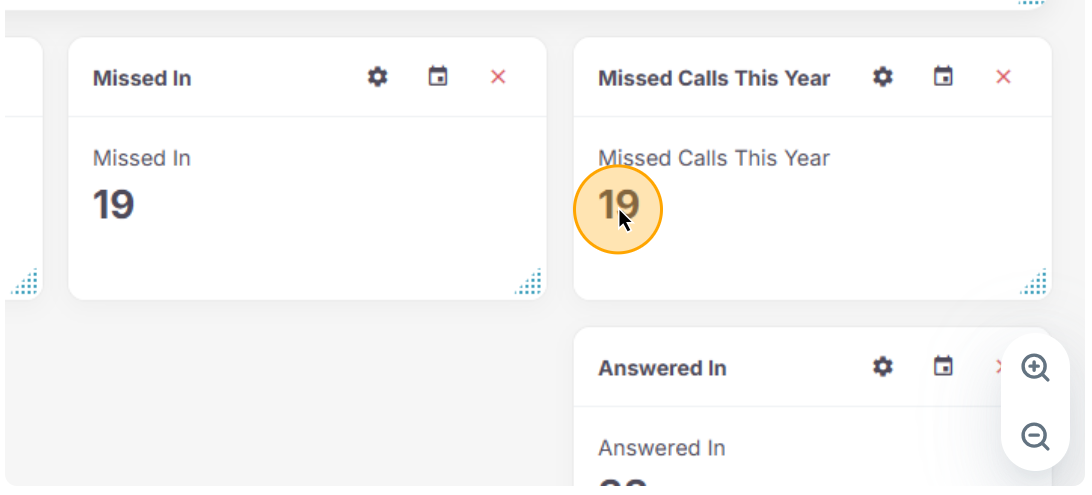
- Click the large number displayed on your widget to open a detailed breakdown of calls.
- Click Export CSV or Export Excel in the top right of the data table to download the records.